Edit photosFree
Add a shadow to your photo so it stops floating
Add a shadow to a photo cut-out and it stops looking pasted on. In the free StokX editor, online or in the app, the Shadows panel puts a Soft, Hard or Floor shadow under your product, person or logo, and None takes it off again. It works on anything you've cut out.
Free · no coins
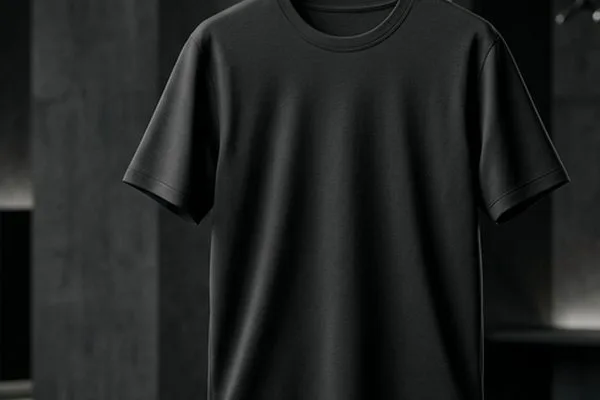
How to add a shadow to a photo
- 01
Cut out the subject
Open a photo in the StokX editor and tap Remove BG, or start from Remove Background or Studio Photo. A shadow needs a cut-out to fall from, so the subject has to stand on its own.
- 02
Choose a shadow
Select the cut-out and open Shadows. Pick Soft for a gentle drop shadow, Hard for a crisp one with sharp edges, or Floor for a pool of shadow on the ground beneath it.
- 03
Compare and save
Tap between the styles to compare them, or tap None to remove the shadow. Pick a background color or keep the page transparent, then tap Save.
A drop shadow generator built into the editor
Four choices, one tap each
None, Soft, Hard and Floor cover the shadows a product photo usually needs. Tap one to apply it, tap another to compare, and keep the one that makes the shot look real.
Soft for clean listings
A Soft drop shadow gives a product a little depth without pulling attention away from it. It suits white and pale backgrounds, where a cut-out with no shadow can look flat and cheap.
Hard for graphic looks
A Hard shadow has crisp edges, like direct sun or a camera flash. It works on bold colored backgrounds, posters and social graphics, where you want the cut-out to stand out sharply.
Floor to ground it
A Floor shadow pools under the product as if it's standing on a surface. Studio Photo uses it by default, so sneakers, bottles and folded shirts look set down rather than hovering.
Works on any cut-out
Shadows work on photos in the editor, whether that's a product from Remove Background, a person or a logo you've cleaned up. Pair the shadow with a background color, or keep the page transparent.
Free, no coins
Adding a shadow costs nothing. There are no coins to spend and no Pro plan needed, so you can try every style on every photo before you decide which one stays.
Made for
- Marketplace product photos
- Logo and sticker previews
- Posters and social graphics
- Catalog pages
- Flat-lay clothing shots
Frequently asked questions
How do I add a shadow to a photo?
Cut the subject out first, then open Shadows. In StokX, open the photo in the editor, tap Remove BG, select the cut-out and pick Soft, Hard or Floor in the Shadows panel. The shadow shows right away. Save when you're happy with it, or tap None to take it off.
Is it free to add a shadow to an image?
Yes. Shadows is free in the StokX app and uses no coins, and so are Remove Background and Studio Photo, the tools you'd usually pair it with. Coins come in for AI generation, like a new scene from AI Backgrounds for 15 coins, and new users start with 15 free coins.
What's the difference between Soft, Hard and Floor?
Soft is a diffused drop shadow that adds gentle depth. Hard is a drop shadow with sharp edges, like direct light, and suits bold graphics. Floor is a pool of shadow under the object, as if it's standing on a surface, which is why Studio Photo uses it. None removes the shadow.
Why does my cut-out look like it's floating?
Because nothing ties it to the page. With no shadow, the eye reads a cut-out as hovering above the background, which is what makes edited product photos look fake. A Floor or Soft photo shadow under the product fixes it in one tap, and it's the quickest way to make a cut-out look photographed rather than pasted.
Is it an AI shadow tool?
Partly. The cut-out is found automatically when you remove the background, and then you choose the shadow style yourself from four options. That keeps the result predictable, and unlike the generative AI tools in StokX, it costs no coins. If you want a whole new lit scene, AI Backgrounds does that for 15 coins.
Does Studio Photo already add a shadow?
Yes. Studio Photo cuts your product out, centers it on a white 1024 × 1024 page and adds a soft floor shadow on its own. Open Shadows afterward if you'd rather have a Soft or Hard drop shadow, or none at all.
Where can I add shadows?
In your browser, in the free editor at stokx.online/editor: remove the background, then pick Soft, Hard or Floor under Shadows. The first download is free, then web Pro. The same Shadows panel is in the StokX app for iPhone, iPad and Android; garments in the app's 3D editor have their own Light controls.
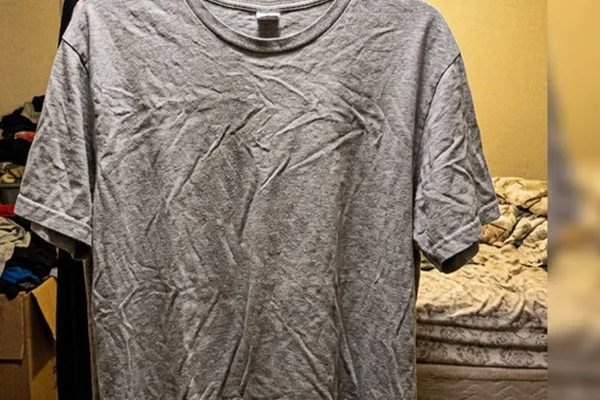



Your brand, ready to sell
Shadows and every other StokX tool, free to download on iPhone and Android.